
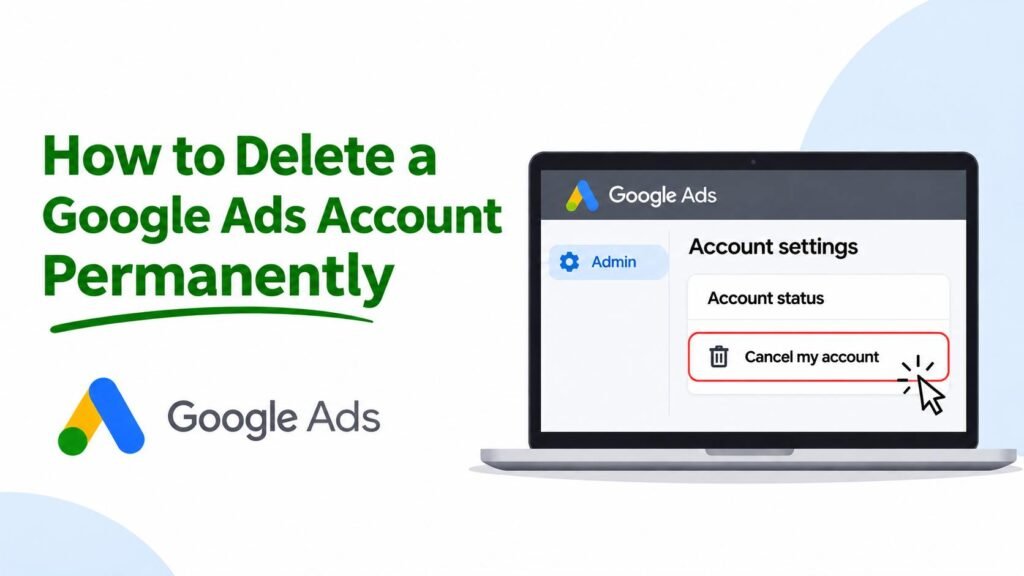
Closing a Google Ads account is not as simple as deleting an app or removing a payment method. Google provides an account cancellation option that stops your campaigns from running while preserving certain account information for a limited period. Before you proceed, it is important to understand what cancellation means, what happens to your billing and data, and whether you may need the account again.
If you are no longer advertising, have moved to another platform, or created an account you do not need, this guide explains how to delete a Google Ads account permanently, step by step. It also covers common issues that can prevent cancellation and the checks worth completing before you close the account.
What Does Deleting a Google Ads Account Actually Mean?
Google Ads generally uses the term “account cancellation” rather than “permanent deletion.” When you cancel an account, your ads stop serving, and you cannot continue running campaigns from that account unless it is reactivated. However, cancellation does not necessarily erase every record immediately.
Google may retain account information for operational, legal, billing, security, and reporting purposes. Some data may remain accessible for a period after cancellation, and outstanding charges still need to be paid.
It is useful to understand the difference between these actions:
- Canceling an account: Stops advertising and changes the account’s status to canceled.
- Removing a payment method: Changes billing arrangements but does not cancel the account.
- Pausing campaigns: Temporarily stops selected campaigns while keeping the account active.
- Deleting a user: Removes an individual’s access but does not close the Google Ads account.
If your intention is to stop all advertising, account cancellation is usually the appropriate option. If you only want to take a break, pausing campaigns may be more suitable.
How to Delete a Google Ads Account Permanently: Step-by-Step Process
You can cancel your Google Ads account through its account settings, provided you have the necessary access and meet Google’s account requirements. The labels and layout may change slightly as Google updates its interface.
Follow these steps:
1. Sign In to the Correct Google Ads Account
Visit Google Ads and sign in using the Google account associated with the advertising account you want to close.
If you manage multiple accounts, check the customer ID and account name before making changes. This is especially important when working with a Google Ads manager account, as you may have access to several client accounts.
2. Open Account Preferences
After signing in, locate the account settings area. In the Google Ads interface, open Admin and look for Preferences or the relevant account settings option.
Make sure you are working within the specific account you intend to cancel, not simply viewing the manager account dashboard.
3. Find the Account Cancellation Option
Within the account preferences, look for the Account Status section. You should find an option to cancel the Google Ads account.
If the cancellation option is unavailable, check whether you have administrator access. Some account configurations or billing arrangements may also require additional steps.
4. Review the Cancellation Information
Before confirming, read the information Google displays about the cancellation. Check the account name, customer ID, and any warnings about billing or access.
Do not rush through this screen. If the account contains campaigns, conversion tracking, historical reports, or billing records that you may need later, make sure you have considered how you will retain the information.
5. Confirm Account Cancellation
Follow the on-screen instructions and confirm your decision. Once the cancellation is processed, your campaigns should stop serving.
Sign in again or review the account status to confirm that the account is marked as canceled. Keep a record of the cancellation date and any confirmation information displayed.
Important: If your goal is to understand how to delete a Google Ads account permanently, remember that cancellation is the normal account-closing process. It is not a guarantee that all associated data will be erased instantly from Google’s systems.
What Should You Check Before Canceling Your Google Ads Account?
Canceling an advertising account can affect campaign delivery, billing, reporting, and access. A few checks before closure can prevent avoidable problems.
1. Download Important Campaign Reports
Export reports that may be useful for future analysis, including:
- Campaign and ad group performance
- Search terms and keyword reports
- Conversion data
- Cost and click reports
- Audience and device performance
- Historical campaign settings
These reports can help you understand past performance if you restart advertising or move to another platform.
2. Check Outstanding Payments
Review your billing summary before cancellation. Google may issue a final charge for advertising activity that occurred before the account was closed. Any outstanding balance remains payable.
If you use monthly invoicing or a consolidated billing arrangement, check the billing terms and contact the relevant billing administrator if necessary.
3. Review Active Campaigns
Check whether any campaigns are still running or scheduled to start. If you manage advertising for clients, inform the relevant stakeholders before canceling the account.
Also review shared budgets, automated rules, and connected campaign workflows so that the closure does not disrupt other marketing operations.
4. Save Conversion Tracking Information
If the account uses conversion actions, Google tags, Google Analytics 4 integrations, or imported conversions, document the setup before cancellation.
For example, a business may use conversion tracking to measure form submissions, phone calls, and purchases. If these settings are needed for another advertising account, record the relevant configuration and coordinate any changes with the website or analytics team.
5. Check Manager Account Access
If the account is linked to a Google Ads manager account, confirm which account you are canceling. Canceling one client account is different from closing the manager account that controls several clients.
Make sure you do not accidentally affect other advertising accounts.
6. Consider Whether Pausing Is Enough
You may not need to cancel the account if you only want to stop spending temporarily.
Pausing campaigns can be a better choice when you expect to advertise again, need to retain an active account, or are waiting for a website, offer, or marketing strategy to be updated.
7. Inform Your Marketing Team or Agency
If an external agency or internal marketing team manages the account, communicate the closure date and responsibilities. Confirm who will download reports, review final billing, and manage any related tracking changes.
What Happens After You Cancel a Google Ads Account?
After cancellation, your ads stop serving. However, the account does not necessarily disappear from your account list immediately.
Here are some important points to understand:
- Campaign delivery stops: Your canceled account will no longer run ads.
- Final billing may apply: You may still receive a final charge for advertising costs incurred before cancellation.
- Historical information may remain available: Certain reports and account details may be accessible after cancellation, subject to Google’s policies and retention rules.
- Reactivation may be possible: In eligible cases, you can reactivate a canceled account instead of creating a new one.
- Related services may need separate attention: Google Analytics, Tag Manager, Merchant Center, and other connected services are not automatically deleted just because you cancel Google Ads.
If you plan to advertise again, check whether reactivating the existing account is more practical than creating a new one. A new account may require fresh configuration, and you should avoid creating duplicate accounts to get around advertising restrictions.
Common Problems When Trying to Cancel a Google Ads Account
Sometimes users cannot find the cancellation option or cannot complete the process. The following checks can help.
You Cannot Find the Cancel Option
Confirm that you are signed in to the correct Google Ads account and have administrator-level access. The option may be located under the account’s preferences or status settings.
You Have a Pending Balance
An outstanding balance does not necessarily mean cancellation is impossible, but you remain responsible for charges. Review the billing page and follow Google’s instructions for resolving payment issues.
You Are Using a Manager Account
A manager account can control multiple advertising accounts. Open the specific client account you want to cancel and verify its customer ID before proceeding.
You Want to Remove All Your Data
Canceling Google Ads does not mean every record is immediately erased. If your concern is personal information or data deletion, review Google’s account and privacy resources to understand the applicable data deletion options and retention requirements.
For official instructions, refer to Google Ads Help.
How Professional Digital Marketing Support Can Help
Managing an advertising account involves more than creating campaigns. It also includes conversion tracking, billing checks, reporting, audience management, and account access. A poorly planned cancellation can interrupt lead tracking or leave a business without important performance records.
Businesses that are restructuring their advertising strategy may benefit from a review before closing an account. A digital marketing professional can help identify which campaigns should be paused, which reports should be retained, and whether tracking needs to be transferred or reconfigured.
For businesses looking to improve their overall online presence, Best Digital Marketing Services in Hyderabad can include SEO, paid advertising, social media marketing, content creation, and conversion-focused website improvements. The right combination depends on business goals, audience behavior, and available budget.
At SpaceKey Digital, the focus is on building practical digital marketing strategies that connect advertising activity with measurable business objectives. Whether a company is reviewing an existing Google Ads setup or planning a new campaign, a structured approach can help avoid unnecessary disruption.
FAQs
1. Can I Reactivate My Account After Canceling It?
Yes. In many cases, you can reactivate a canceled account by signing in and selecting the reactivation option. If you are researching how to delete a Google Ads account permanently, remember that cancellation may be reversible, although reactivation may not be available indefinitely.
2. How Long Does It Take for Ads to Stop Running?
After you cancel your account, ads generally stop serving within 24 hours. When following the steps for how to delete a Google Ads account permanently, check the account status and look for Google’s cancellation confirmation.
3. Will I Get a Refund After Canceling My Account?
You may receive a refund for eligible unused prepaid funds or refundable credits after cancellation. Outstanding advertising costs must still be paid, and promotional credits are generally not refundable. Google says eligible refunds typically take 4–12 weeks, including bank processing time. Check your Billing Summary for updates.
Google Ads Help+1
4. Can I Cancel a Google Ads Account Without Admin Access?
No. Google requires administrative access to cancel an account. If you cannot find the cancellation option while following how to delete a Google Ads account permanently, contact an account administrator and ask them to complete the process.
Google Ads Help
5. Does Canceling Google Ads Delete My Campaign History?
No, cancellation does not immediately remove all account history. You can generally continue accessing account data by signing in, although some information and features may change after cancellation. If you need records, download important reports before closing the account.